Direct Bank Transfer Walk Through
imuniqueUK website home page options.
SHOP; Does what it says on the box, click here to go to imuniqueUK’s shopping area.

Alternative areas to log in

Logged in or not?
If you can see “Log in” on the navigation bar – you are not logged in

Logged in or not?
When you are logged in, you will see “Hi {first_name} displayed

Go Shopping

Go TRADE Shopping
If you are a Trade customer and logged in – you will see additional information as per the image to the right

Basket

Checkout

Lorem ipsum dolor sit amet, at mei dolore tritani repudiandae. In his nemore temporibus consequuntur, vim ad prima vivendum consetetur. Viderer feugiat at pro, mea aperiam
Selecting the correct options
The options are;
PayPal
Direct bank transfer
Credit/Debit Cards
Google Pay
As per the image to the right, click on the “Direct Bank Transfer”.
Also tick the “I have read and agree to the website. Terms and conditions*”
Then proceed to and click on “Place order”

Order Confirmation
Upon order placement you will see the following page. At this stage the order details have been sent to imuniqueUK.
The order’s current status is “On Hold” awaiting payment.

Checking your order status
At any point, you can go to “My Shop Account”
This will give you access to your order history and any download files you have purchased.
Note; you can edit your profile here too.
To the right you will see your “orders”. To the right of each order line, there are action buttons. Generally you will not need to interact with these.
The status of the bottom line is “Processing”, All three buttons showing indicates, There are no issues and the order is in production.
The status of the top line only shows two buttons, the “on hold” button is not there. This indicates the order is currently on hold.
Note; The view button, displays the order in detail. The invoice button, will generate an invoice for you records if the original is lost.

What iUk can see & do back stage.
We can see an order has been placed, awaiting payment. As soon as a payment is received, we will change it’s status to processing, plus add the payment reference to the order.
The on hold status, is often used by customers;
1) To know they had secured a presence, letting me know an order is on it’s way.
2) For the customer and I to run over the fine details of the order. Mainly for peace of mind, that things can be changed if required.
We can produce either a “Proforma Invoice” (Simply put, it outlines the anticipated transaction details based on a buyer’s order, without requesting payment).
or Standard invoice

Example of a Proforma Invoice.

Example of an Invoice.

Approved payment methods
Accepted payment methods;
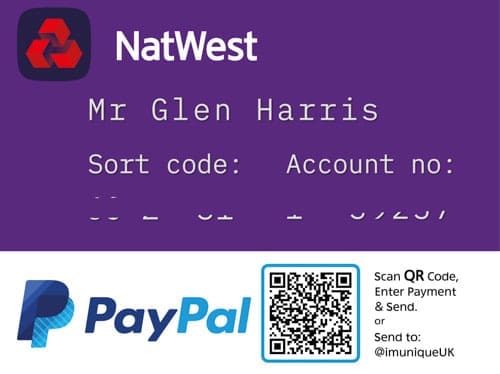
Bank Transfer
PayPal Transfer
Sample for both are in the image to the right.